

Apparently a developer’s job is not only developing applications. It is also expected of a developer to test the code, create and maintain the environment for the packages and installable files. Furthermore deploy it in either cloud or in client’s setup and obviously take care of it for the rest of the life.
And that silently requires us, the developers to get a good grip over linux commands. Most of us do not master linux commands or rather do not understand it’s importance in grad school. However, as we start our journey as a developer we eventually get exposed to it.
In this article I have listed a set of linux commands that I often use or have used. This is just a small subset of the infinite possibilities.

System information
Let’s start with the commands for listing system and hardware information.lscpu is perhaps the first one that anyone would recommend. This gives a brief info about the CPU architecture.
Quoting from the man page:
lscpu gathers CPU architecture information from sysfs, /proc/cpuinfo and any applicable architecture-specific libraries (e.g. librtas on Powerpc).
The command output can be optimized for parsing or for easy readability by humans. The information includes, for example, the number of CPUs,
threads, cores, sockets, and Non-Uniform Memory Access (NUMA) nodes. There is also information about the CPU caches and cache sharing, family,
model, bogoMIPS, byte order, and stepping
Also to know about the Linux flavor installed in the system lsb_release -a can be used. However, this command only works in Ubuntu. In general, cat /etc/* -release gives a full details about the OS release and associated information.
Listing directories and files
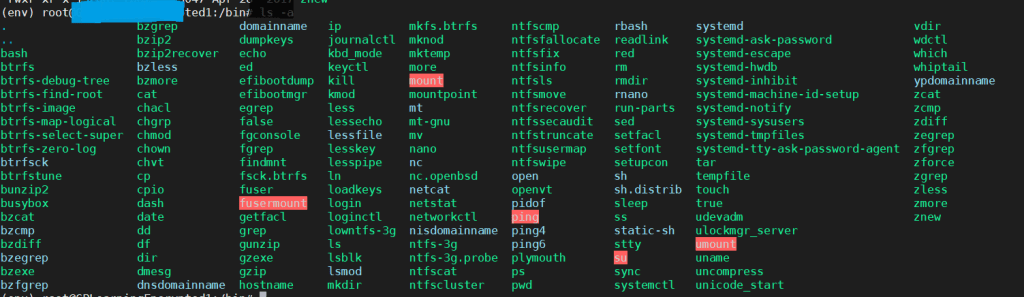
The ls is a standard command to list all the items present in a directory. ls -l performs a long listing of the files, ls -a lists all files present in a directory including the swap, and hidden files.ls -l --block-size=M gives files listing with file size in MiB.
For more options to try with ls please refer to the man page (type man ls). Below is a snapshot of ls -a output:
Checking the disk space
When we run memory extensive processes, or processes which generate output files which are then stored locally, on servers or on our own machine. We may periodically have to check the total disk space used/left on the system.
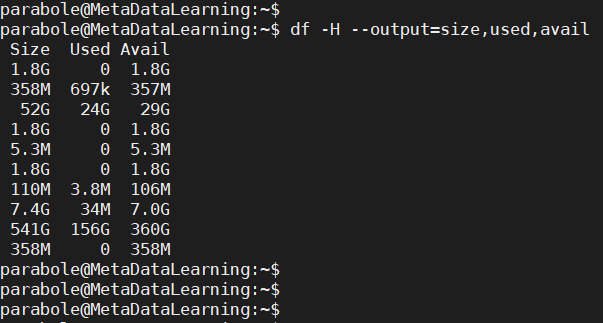
Linux gives us an array of commands to check the same. Some of them are listed below:du : It summarizes disk usage of the set of files, recursively for directories. du with a -sh displays the disk usage in human readable format. df : This command reports file system disk space usage.
The following is a snapshot of both the commands with their output. Combined with different arguments the df and du output can be formatted in many ways. For instance, the following displays only size, used and available.


for checking the status of the physical memory, free is a clean tool to rely upon.free -m, free -g, free -k, free -b displays the RAM status in MiB, GiB, and KiB and Bytes respectively.
Checking processes
We often need to list all the processes that are running or stopped or residing in some other state. The ps command serves just that.
I am just copy pasting an excerpt from the man page here below:
To see every process on the system using standard syntax:
ps -e
ps -ef
ps -eF
ps -ely
To see every process on the system using BSD syntax:
ps ax
ps axu
To print a process tree:
ps -ejH
ps axjf
To get info about threads:
ps -eLf
ps axms
To get security info:
ps -eo euser,ruser,suser,fuser,f,comm,label
ps axZ
ps -eM
To see every process running as root (real & effective ID) in user format:
ps -U root -u root u
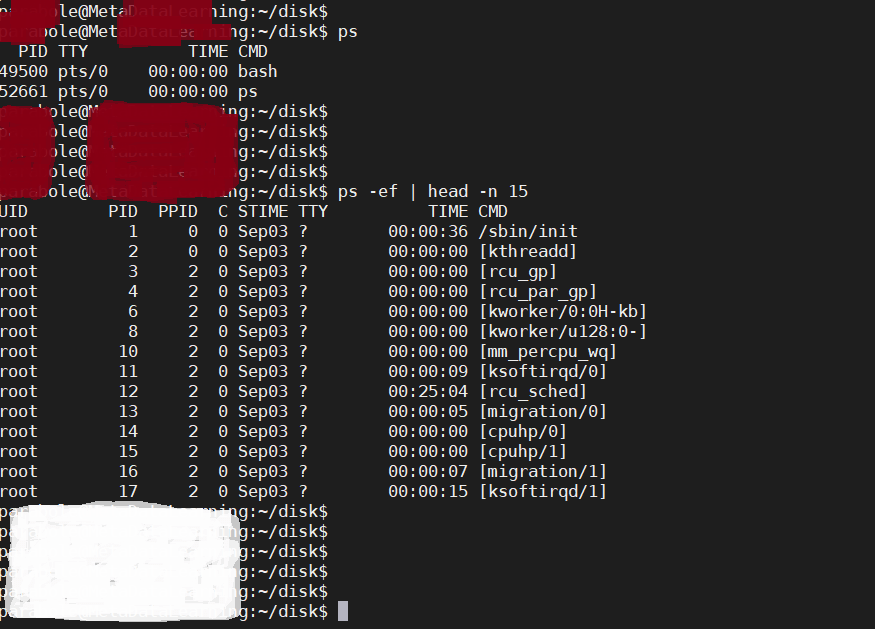
We may sometimes want to get details of a specific process from the list of all processes. To achieve this we can grep the ps output by the process name as shown below:ps -ef | grep test_python_script.py
This gives us the process id, which then can be used with ps command for more details.
Another heavily used linux command is top. Ps is non-interactive but top is interactive (pressing “h” while running top gives the options list for manipulating processes) and unlike ps, top gives a real time view of all the running linux processes which also includes information about RAM, Swap mem and CPU usage and states of different processes. Ps just gives a snapshot.

More commands
Killing a process using its process id$kill -9 pid
Kill a process using it’s name (-f makes use of the full command line to match)$pkill -f process_name
Sending a process in the background at the time of invocation (& sends it in the BG)$python run_test_script.py &
To check the history of executed commands. This does not include the execution time.$history
To add the execution time in the history op run the following commands before executing $ HISTTIMEFORMAT="%d/%m/%y %T "$ echo 'export HISTTIMEFORMAT="%d/%m/%y %T "' >> ~/.bash_profile$ source ~/.bash_profile
To activate a virtual environment$source /home/my_path/environment_name/bin/activate
To deactivate the environment$deactivate
To count how many times a string has occurred in a file$grep -wc "john doe died" my_logfile.log
To zip a directory$zip -r name_of_the_zipped_file.zip directory_to_be_zipped/
To unzip$unzip zipfile.zip
Becoming a root user and undoing it$sudo su
$exit
To grant read/write and execution rights to a file$chmod 777
NOTE: executing the above command grants owner, group and others access to do anything and everything with the file. Be careful with it. Sometimes we want to limit the access for specific users. Read more about it here.
To create a zero byte file$touch filename
To display the last N lines of a file$tail -n -N filename
To display the first M lines of a file$head -n N filename
To display the private ip address of the system any one of the following can be used. (There are more actually)$ifconfig -a
$ifconfig
$hostname -i
To check the public ip address an HTTP request can be made as:$curl ifconfig.me
To check all the open ports in a system$sudo lsof -i -P -n
Further optimization to list all the LISTENING ports$sudo lsof -i -P -n | grep LISTEN
The list of commands and utilities in Linux is never ending and any given task in Linux can very well be achieved using different commands. It depends a lot on the developer, his/her experience and the exact requirement they have.
So, practically no amount of internet article is sufficient enough to capture all of them but I hope this article covers at least the basics.
NOTE: It is recommended to read the “man” before using the commands.
 Technical Dopamine
Leave a comment